Your character is fighting, but your gold balance is not going up? In RAN: Royal Academy Nations, auto-battle and pet gold pickup need separate checks. This guide walks you through choosing a cloud device, setting up Auto Pots, and checking the Pick Up Money pet skill before leaving your character to fight.
Take a minute to see how to buy and how to start.
The KVIP setup shown in the accompanying recording was reported to run relatively smoothly, though some stuttering remained. Basic and VIP setups also ran the game but had noticeable lag. These observations apply to the recorded setups, not every server or combat situation.
An SVIP recording is also provided for comparison. It does not, on its own, establish that SVIP performs better than KVIP.
Price and purchase entrance:View packages and purchase cloud devices
Choose the device tier, region, Android version, plan duration, and number of devices, then check the total at checkout. Use a configuration confirmed to work with your game version. If you plan to use several devices, check the total cost for that quantity.
How to start after purchasing
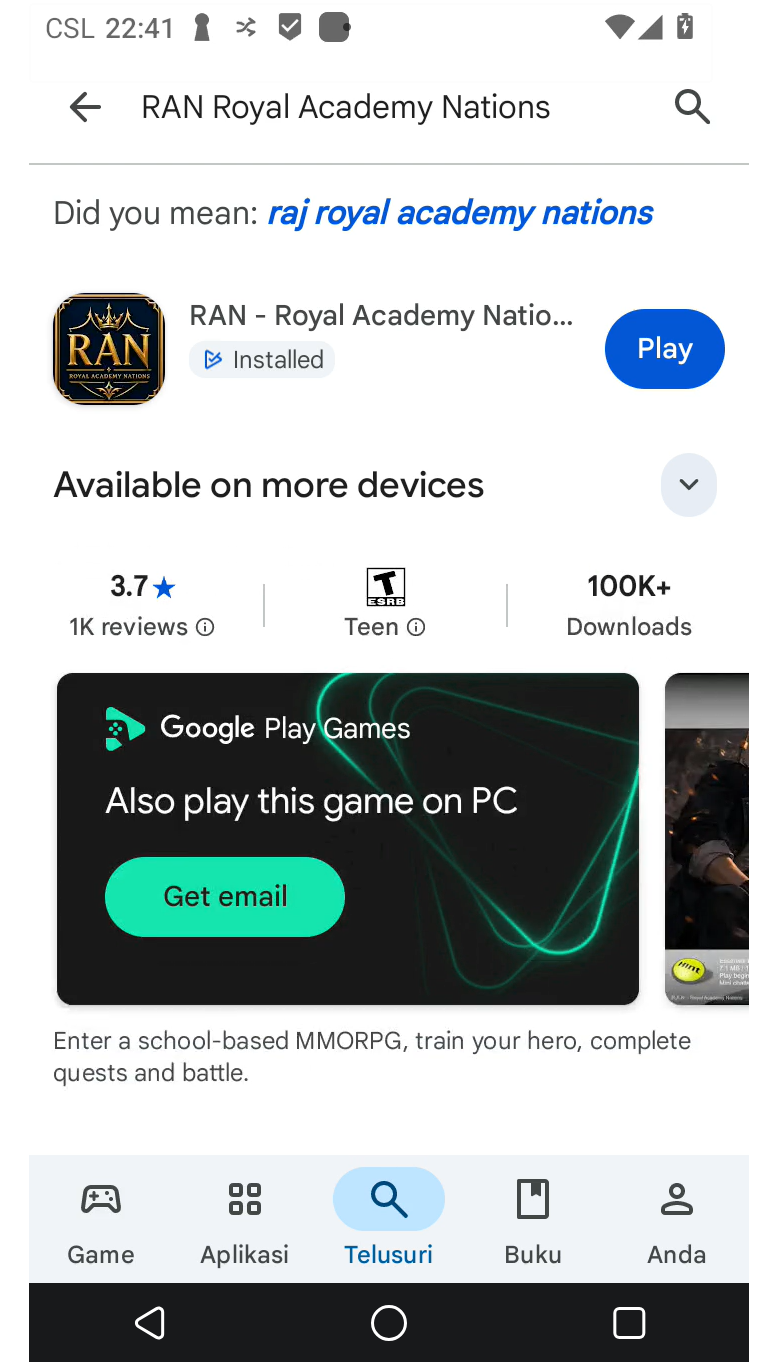
1. Sign in to VSPhone and open your purchased cloud device. Download and install the game inside that device.
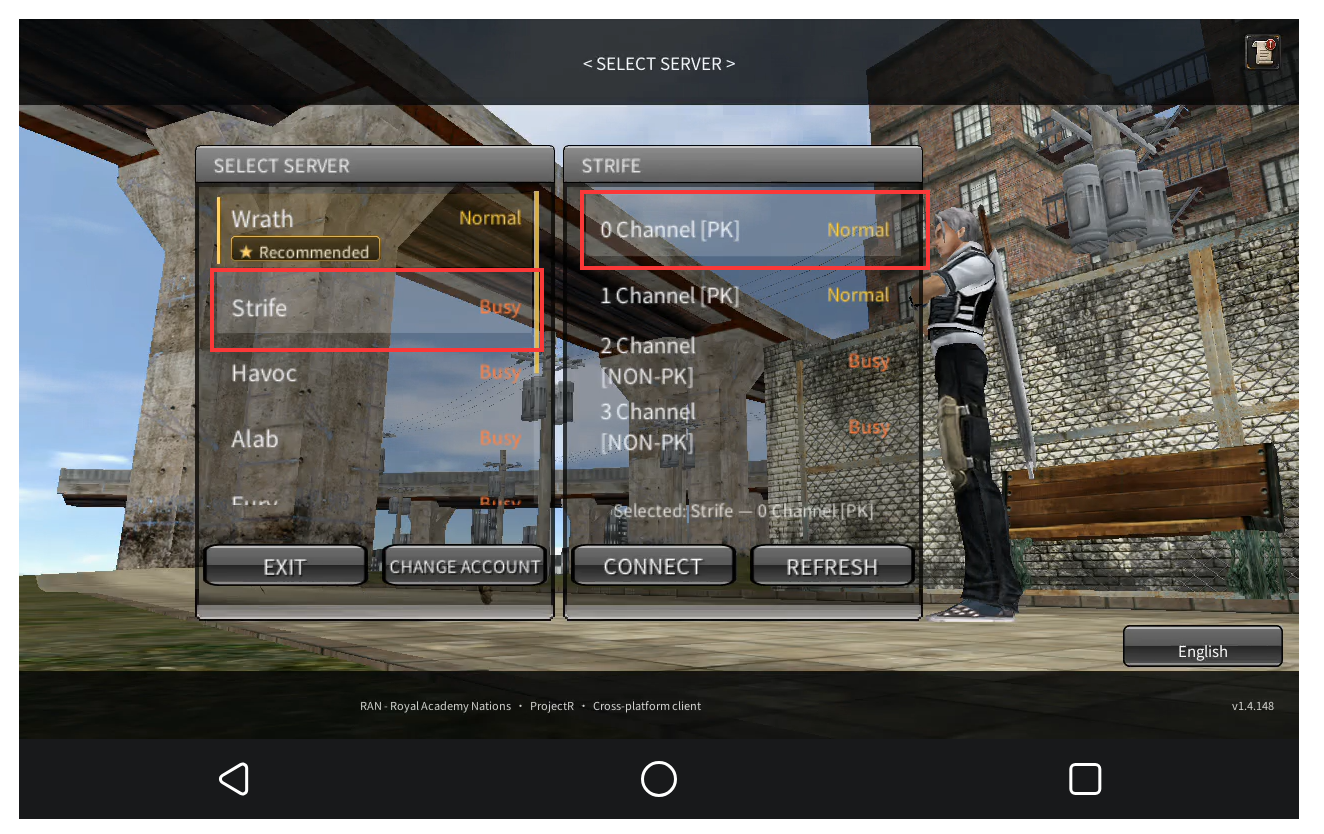
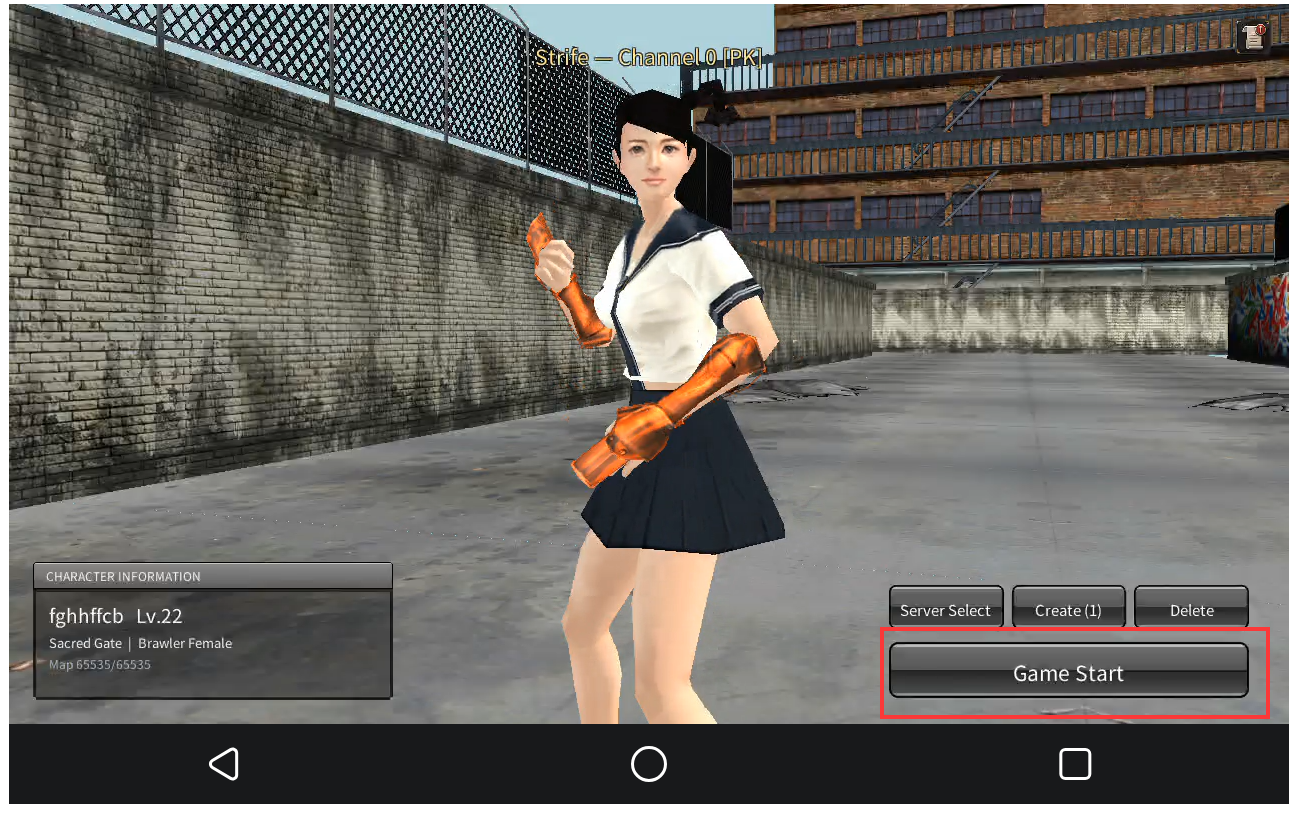
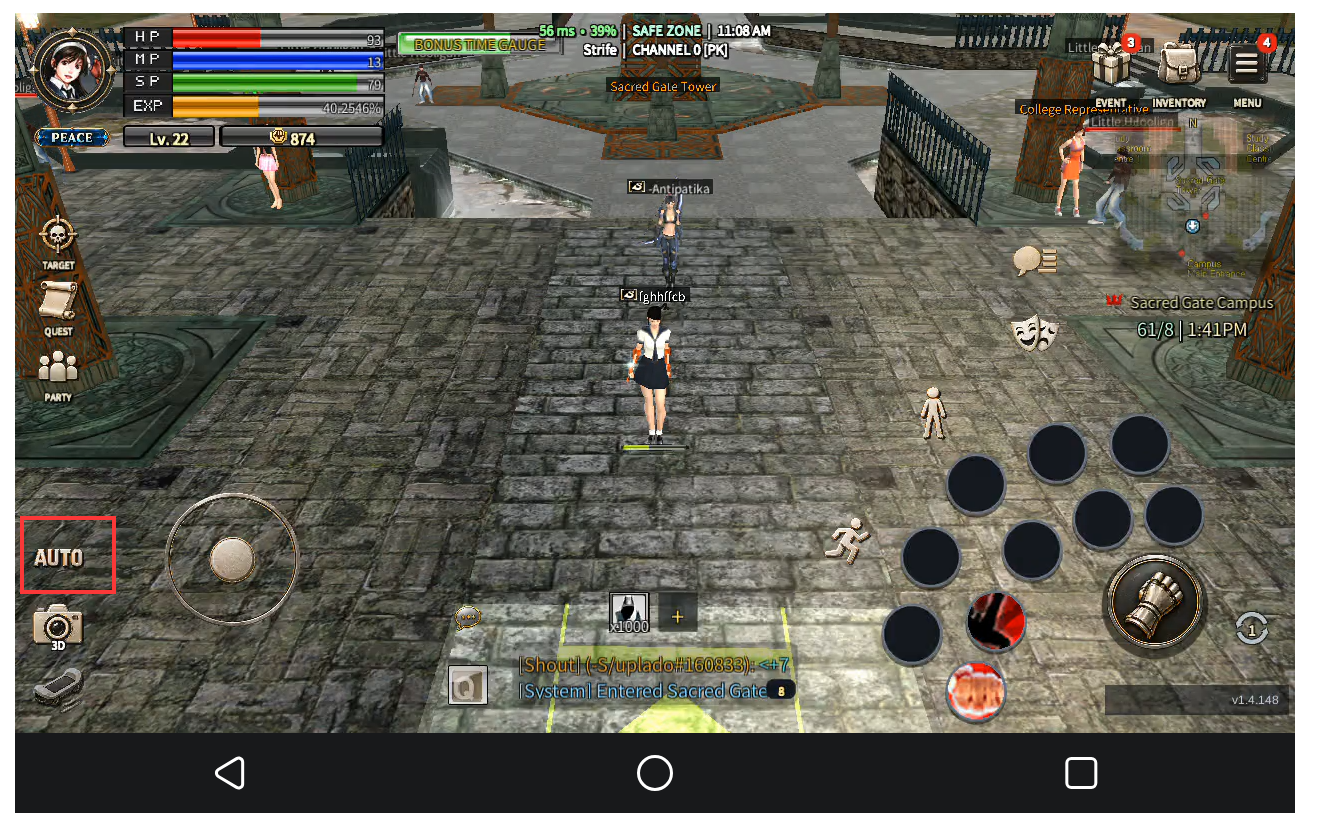
2. Use the official RAN download link for your version. Sign in, select your server, and enter your character. The gameplay screenshots in this guide show v1.4.148 on Strife. Once in the game, locate AUTO at the bottom left and MENU at the top right.
Game download:RAN Official Guide and download portal
3. Follow the settings below, then watch your character fight to check that attacks, healing, and gold pickup work as expected. When you return later, reconnect to the same cloud device.
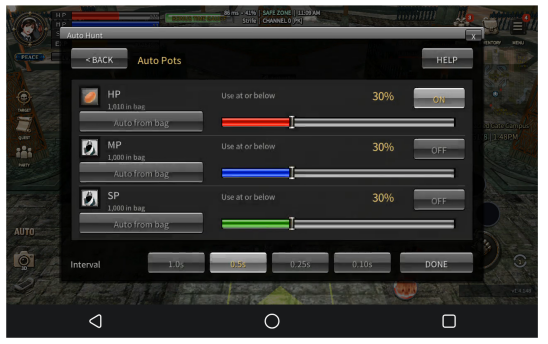
The screenshot shows an HP threshold of 30% and a 5-second interval. These are example settings, not a recommendation for every class. Adjust them to match the damage you take and your potion supply. Select DONE, return to combat, and watch your health. Restock or change the settings if healing cannot keep up.
Check that your pet has learned Pick Up Money
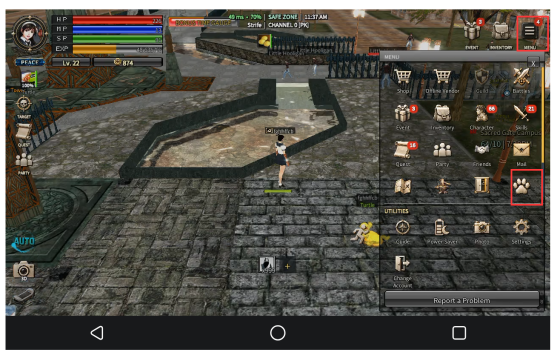
Open MENU at the top right, then select the PET icon highlighted in the screenshot.
On the PET screen, check ACTIVE PET SKILLS and ACTIVE SKILL SUMMARY. The Turtle shown here has a coin icon in SLOT A and Pick Up Money in the summary. The message at the bottom also confirms that the pet learned the skill.
Once inside, check out the ACTIVE PET SKILLS and ACTIVE SKILL SUMMARY. The Turtle in the picture shows the gold coin icon in SLOT A, the summary reads Pick Up Money, and there is A learning success prompt below.Only when you see this state can you confirm that your pet has learned the corresponding skills.
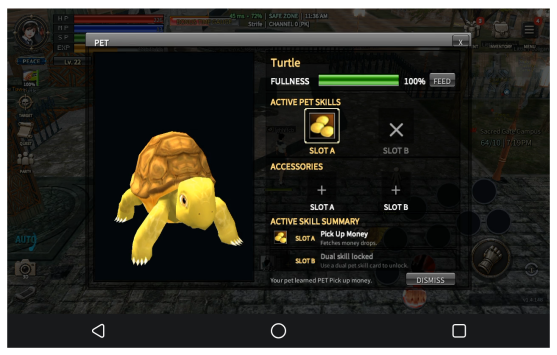
If Pick Up Money is missing, summoning a pet alone will not make it collect gold. Check the description of the relevant pet skill item and follow its learning instructions. Then return to the PET screen to confirm that the skill appears.
Check your gold balance before leaving AUTO running
Open your inventory and note the gold balance at the top right. Return to a spot where your character can defeat the enemies, then enable AUTO. After a few fights, open the inventory again and compare the balance. Avoid claiming mail, turning in quests, or buying items during this check so that other transactions do not affect the comparison.
Pick Up Money collects gold. An increase in gold does not prove that potions, equipment, or other drops are also being collected. If you are farming a particular material, check that item in your inventory separately.
If your gold balance is not increasing
Check that your character is defeating enemies, your pet is present, and Pick Up Money appears in its skill list. Then check whether those enemies dropped gold and whether any spending offset the amount collected. Gaining EXP alone does not confirm that gold pickup is working.
The game’s power-saving screen is different from exiting the game or receiving offline rewards. Before leaving, check whether the game will remain open or whether you are closing it completely.
Keep your phone free while the game runs in VSPhone
Once AUTO, potions, and pet pickup are working, you can leave the game running on your cloud device and use your phone for other tasks. Leave the local viewing window without closing RAN or shutting down the cloud device. When you reconnect, check your character, potion supply, and gold balance. Auto-battle and pickup are game features; VSPhone does not increase drop rates or remove the need to handle prompts and interruptions.