Auto-battle is running, but your character only uses normal attacks? Start with the first hotbar slot, then check the message on the Attack tab. This guide uses screenshots to explain skill placement, applying settings, and reading the combat display, with tips for getting started on VSPhone.
Quick start: Check the attack skill in hotbar slot 1 → read the Attack Skill message → check Auto attack → select Apply → observe attacks and EXP changes. Select Stop when you need to pause.
Choose a cloud device and get started
The recorded single-session setup used KVIP, Android 13, and a South Korea node. The game was playable, but the frame rate was inconsistent. Treat this as a tested configuration to consider, not a recommendation for every KVIP or higher-tier device. Performance on lower tiers has not been established here.
Pricing and purchase options: View VSPhone plans and cloud devices
Select the device tier, region, Android version, plan duration, and number of devices, then check the order total. Confirm that your game version works in the selected environment. If you need several devices, calculate the cost for that quantity and check the final price at checkout.
How to start after purchasing
1. Sign in to VSPhone and open your purchased cloud device. Use the official game entry point for your version inside that device. If a client installation is required, install it there.
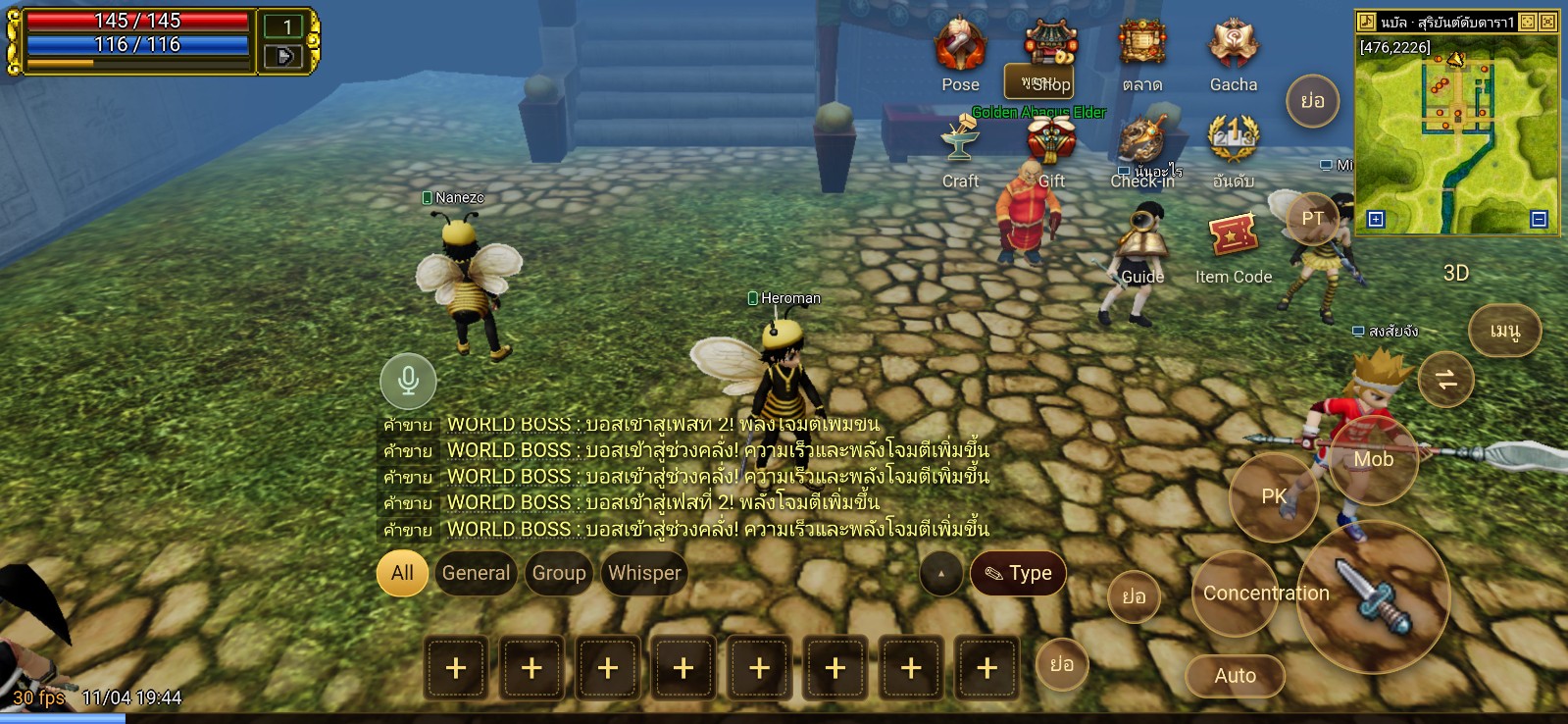
2. Enter your character and check the Attack settings below. Watch the character attack and check whether skills behave as expected before leaving it running. Return to the same cloud device when you want to check progress.
These instructions apply to the client shown in the screenshots. Check that your version and interface match, and confirm that the automatic functions you use are permitted by that version’s game rules.
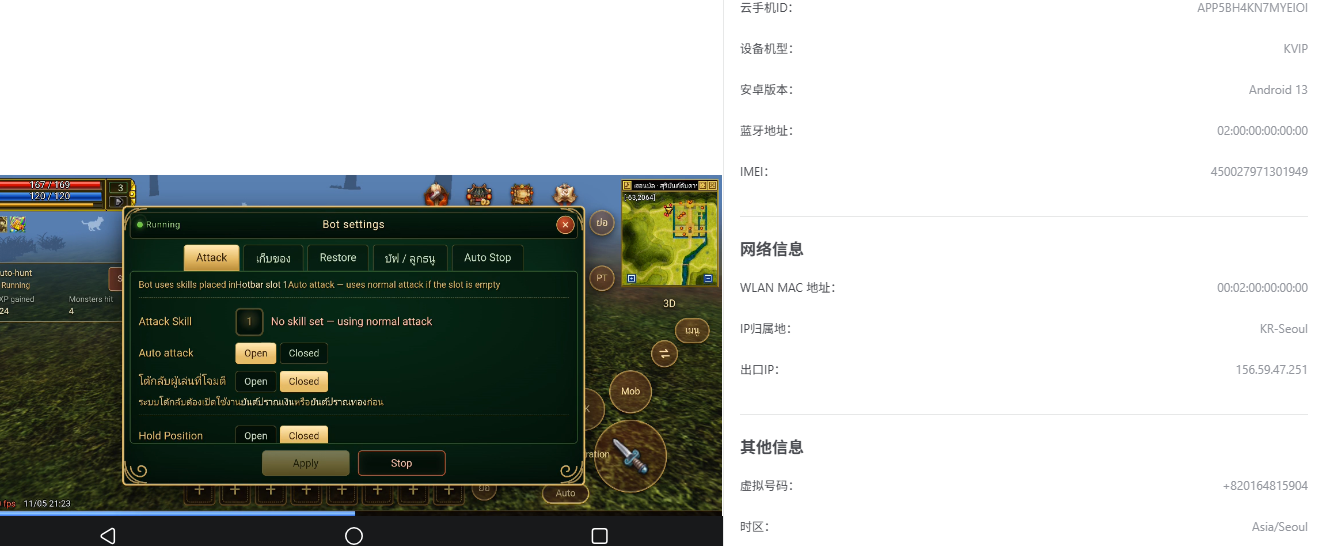
Only normal attacks Check hotbar slot 1
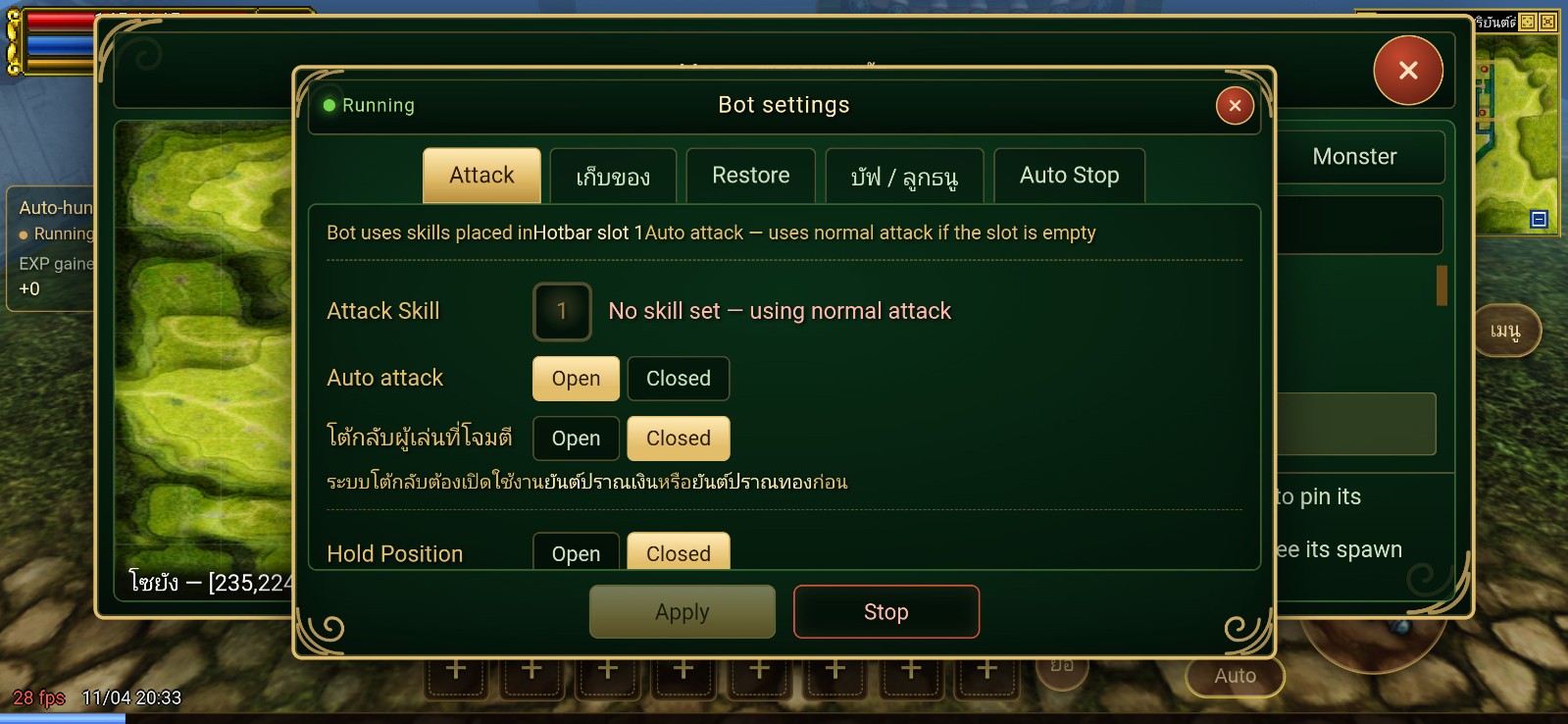
On the Attack tab, check Attack Skill. The screenshot shows 1 alongside “No skill set – using normal attack,” and the text above refers to Hotbar slot 1. If you see the same message, check whether a usable attack skill is assigned to the first slot at the bottom of the screen. Learning a skill does not automatically place it in the slot this setting reads.
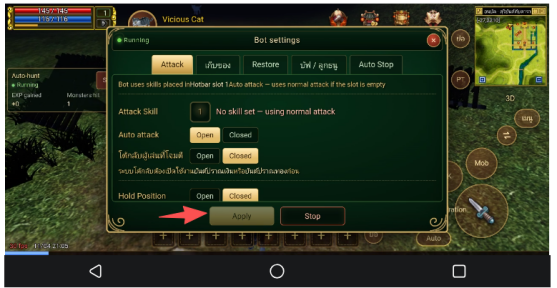
Check the switches before selecting Apply
Check Auto attack on the Attack tab. In the screenshot, Open is highlighted for this option, while Closed is highlighted for Hold Position. Identify the setting you want to change rather than turning every option on.
Select Apply after making a change, then watch what your character actually does in combat. To stop, use Stop in the settings panel or Stop bot on the left of the gameplay screen.
Change one setting at a time so you can tell what affected the result. If the character still uses normal attacks, moves unexpectedly, or selects the wrong targets, stop the function and check the skill slot and on-screen messages again.
Check combat as well as the Running status
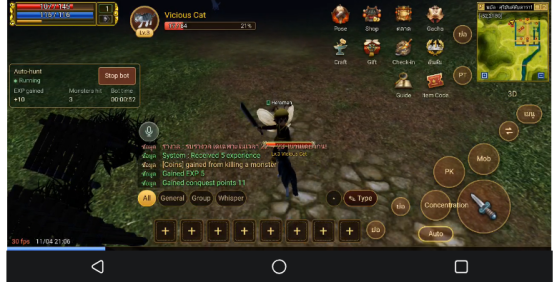
Running means the panel is active. Monsters hit counts hits, not kills. Check the character’s actions and EXP changes as well; a single counter is not enough to confirm that the settings work as intended.
Check recovery and pickup before continuing
The panel also shows Restore, Auto Stop, and “เก็บของ” (item pickup). Check these separately from attacking. Automatic attacks do not prove that potions are being replenished or that every drop is reaching your inventory.
Before starting, note your health, potion count, and the quantity of one item you want to collect. Compare them after a short session to see whether recovery keeps up and the target item increases. If EXP rises but the material count does not, check drops and pickup before leaving the character running longer.
Keep your phone free while the game runs in the cloud
If you want to use your phone for other tasks, run the confirmed game client or website inside a VSPhone cloud device. Check that attacks and results are working before leaving the viewing window. VSPhone provides the environment; skill use, recovery, and pickup depend on the game and the functions being used.
Use the entry point that matches your game version. Android apps and browser clients work differently, and a Windows installer cannot be installed directly on an Android cloud device.
To keep the game open on the cloud device, close only the local viewing window, not the game page or the cloud device. When you return, open VSPhone, reconnect to the same device, and check your character and progress. Putting the browser inside the cloud device in the background is a different action.
Before trying the game, check the device configuration, game entry point, and plan cost. For help with VSPhone device connections or controls, visit the official community.
Join the official VSPhone Discord community