

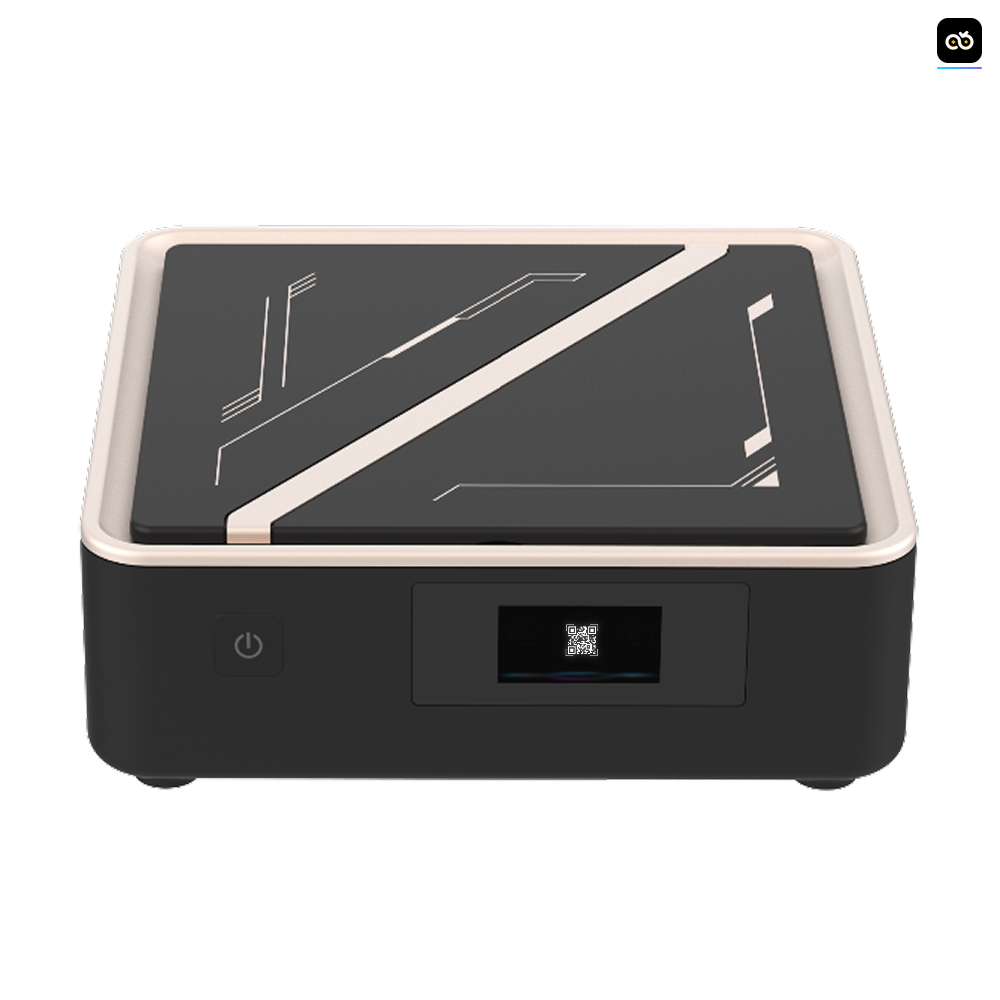



How to use Roblox to clone
📌 How to use Roblox to clone/run multiple instances (Method 1)
This method allows you to run multiple Roblox instances at the same time.
Please follow the steps carefully.
🧩 Step 1: Prepare the Tools
Download the Roblox APK installation file
Download MT Manager (MTmanage)
📌 Roblox Clone / Multi-Instance Tutorial (Method 2 – VSCloner)
This method uses VSCloner to run multiple Roblox instances.
Please follow the steps carefully.
🧩 Step 1: Install Required Apps
Open the App Store
Download and install:
Roblox
VSCloner
🧩 Step 2: Clone Roblox Using VSCloner
Open VSCloner
Select Roblox from the app list
Tap Clone to create a cloned Roblox app
(Optional) Repeat the process if you need multiple clones
⚠️ Each clone is an independent Roblox instance.
🧩 Step 3: Enable Developer Options (Very Important)
Go to Settings → Developer Options
Locate the Standby apps related section
Enable ALL of the following options:
✅ Force allow apps on external
✅ Force activities to be resizable
✅ Enable freeform windows
✅ Force desktop mode
⚠️ This step is required for floating window and multi-instance support.
🧩 Step 4: Restart the Device
Restart the cloud phone
(This ensures the developer settings take effect.)
🧩 Step 5: Enable Floating Window Mode
Open Roblox (original app)
Enable Floating Window / Freeform Window mode
⚠️ Make sure Roblox can run properly in floating window mode before continuing.
🧩 Step 6: Restart Again
Restart the cloud phone again
(This helps stabilize floating window behavior.)
🧩 Step 7: Run Multiple Roblox Instances
Open VSCloner
Launch the cloned Roblox apps
Run Roblox in floating window mode
You can now open multiple Roblox instances at the same time
🎉 Multi-instance setup completed!
⚠️ Important Notes
Use different Roblox accounts for each instance
Opening too many instances may affect performance
If floating window does not work, recheck Developer Options
🧩 Step 2: Clone the Roblox APK
Open MT Manager
Locate the downloaded Roblox APK
Use MT Manager’s Clone / Repackage function
Clone the APK as many times as needed
(Each cloned APK = one separate Roblox instance)
⚠️ Note:
Each cloned APK works independently and can log in with a different account.
🧩 Step 3: Enable Developer Options (Very Important)
Go to Settings → Developer Options
Find the Standby apps related settings
Enable ALL of the following options:
✅ Force allow apps on external
✅ Force activities to be resizable
✅ Enable freeform windows
✅ Force desktop mode
⚠️ This step is critical.
If any option is missing, multi-instance may not work.
🧩 Step 4: Install the Cloned Roblox APKs
Install the cloned Roblox APK files
If you cloned multiple APKs, install all of them
🧩 Step 5: Enable Floating Window Mode
Open each cloned Roblox app one by one
Enable Floating Window / Freeform Window mode for each instance
Make sure all Roblox instances can run independently
🧩 Step 6: Reboot and Finish
Restart the cloud phone
After reboot, reopen all cloned Roblox apps
You can now run multiple Roblox instances at the same time
🎉 Multi-instance setup completed!
⚠️ Important Notes
Use different Roblox accounts for each instance
Running too many instances may affect performance
If floating windows don’t work, recheck Developer Options
📌 Roblox Clone / Multi-Instance Tutorial (Method 2 – VSCloner)
This method uses VSCloner to run multiple Roblox instances.
Please follow the steps carefully.
🧩 Step 1: Install Required Apps
Open the App Store
Download and install:
Roblox
VSCloner
🧩 Step 2: Clone Roblox Using VSCloner
Open VSCloner
Select Roblox from the app list
Tap Clone to create a cloned Roblox app
(Optional) Repeat the process if you need multiple clones
⚠️ Each clone is an independent Roblox instance.
🧩 Step 3: Enable Developer Options (Very Important)
Go to Settings → Developer Options
Locate the Standby apps related section
Enable ALL of the following options:
✅ Force allow apps on external
✅ Force activities to be resizable
✅ Enable freeform windows
✅ Force desktop mode
⚠️ This step is required for floating window and multi-instance support.
🧩 Step 4: Restart the Device
Restart the cloud phone
(This ensures the developer settings take effect.)
🧩 Step 5: Enable Floating Window Mode
Open Roblox (original app)
Enable Floating Window / Freeform Window mode
⚠️ Make sure Roblox can run properly in floating window mode before continuing.
🧩 Step 6: Restart Again
Restart the cloud phone again
(This helps stabilize floating window behavior.)
🧩 Step 7: Run Multiple Roblox Instances
Open VSCloner
Launch the cloned Roblox apps
Run Roblox in floating window mode
You can now open multiple Roblox instances at the same time
🎉 Multi-instance setup completed!
⚠️ Important Notes
Use different Roblox accounts for each instance
Opening too many instances may affect performance
If floating window does not work, recheck Developer Options