




How to Use MELOLO on VSPhone?
1: How to Install MELOLO on cloud phone (Single Device & Batch Devices)?
- Single Cloud Phone
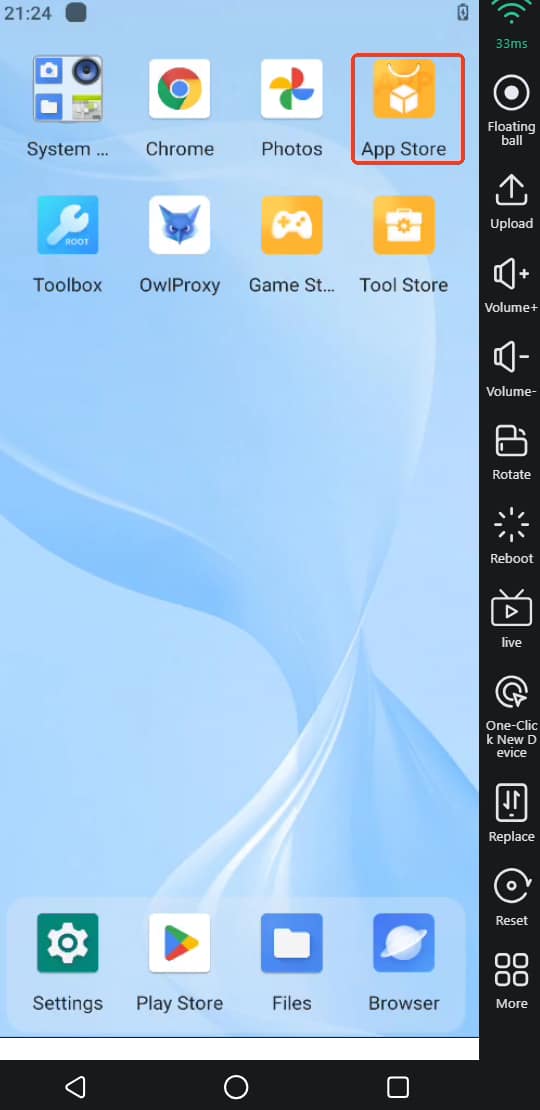
Open VSPhone Cloud Phone → Open built-in App Store → Search MELOLO → Download → Complete installation → View app on desktop
 - Multiple Cloud Phones (Batch Install)
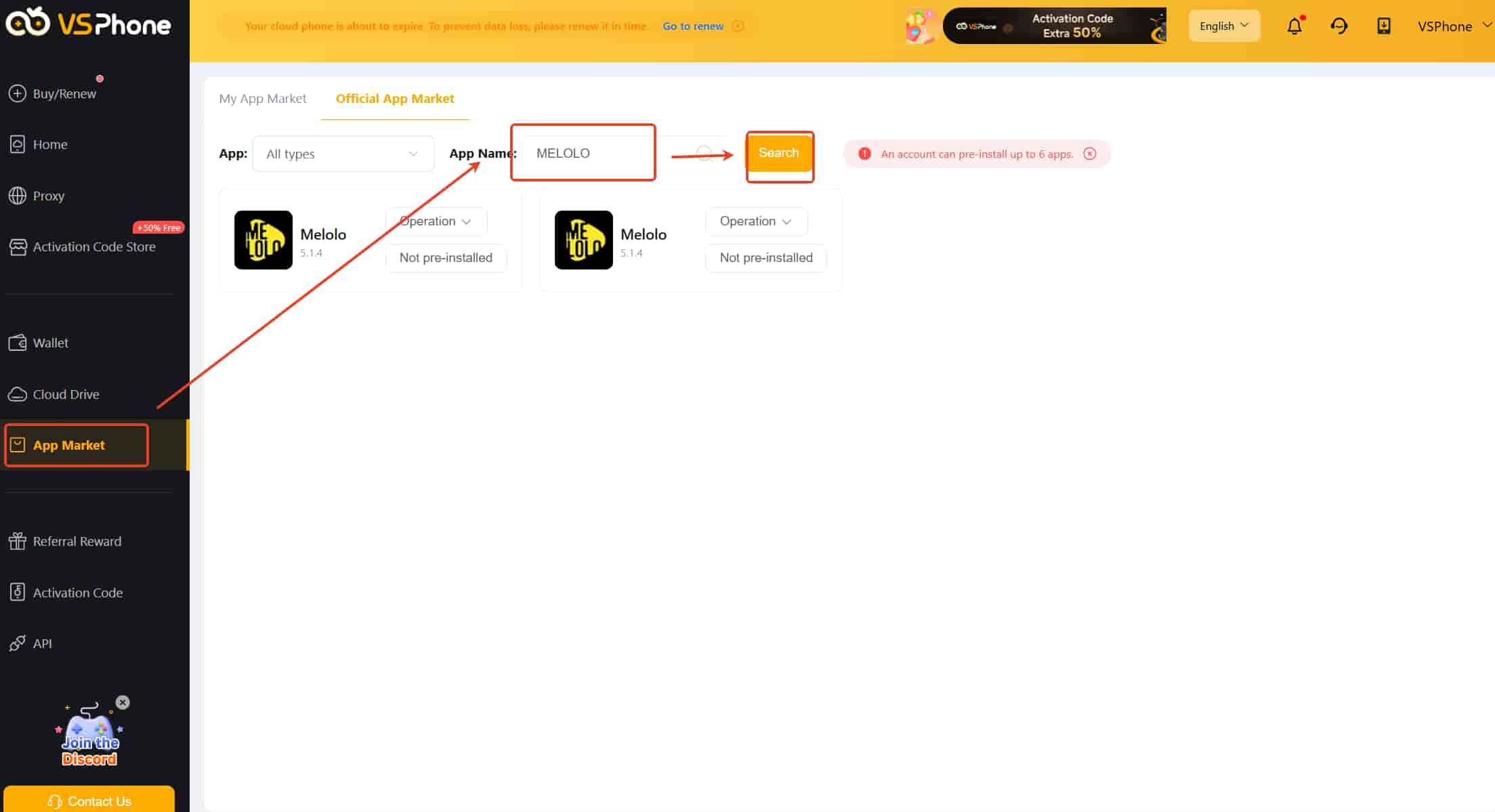
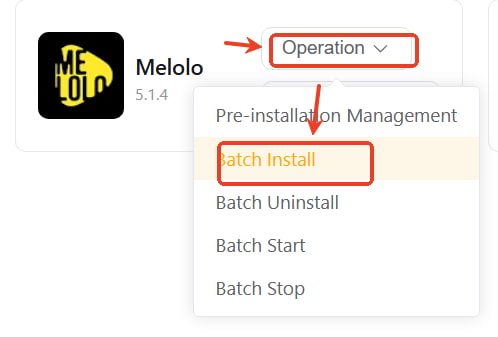
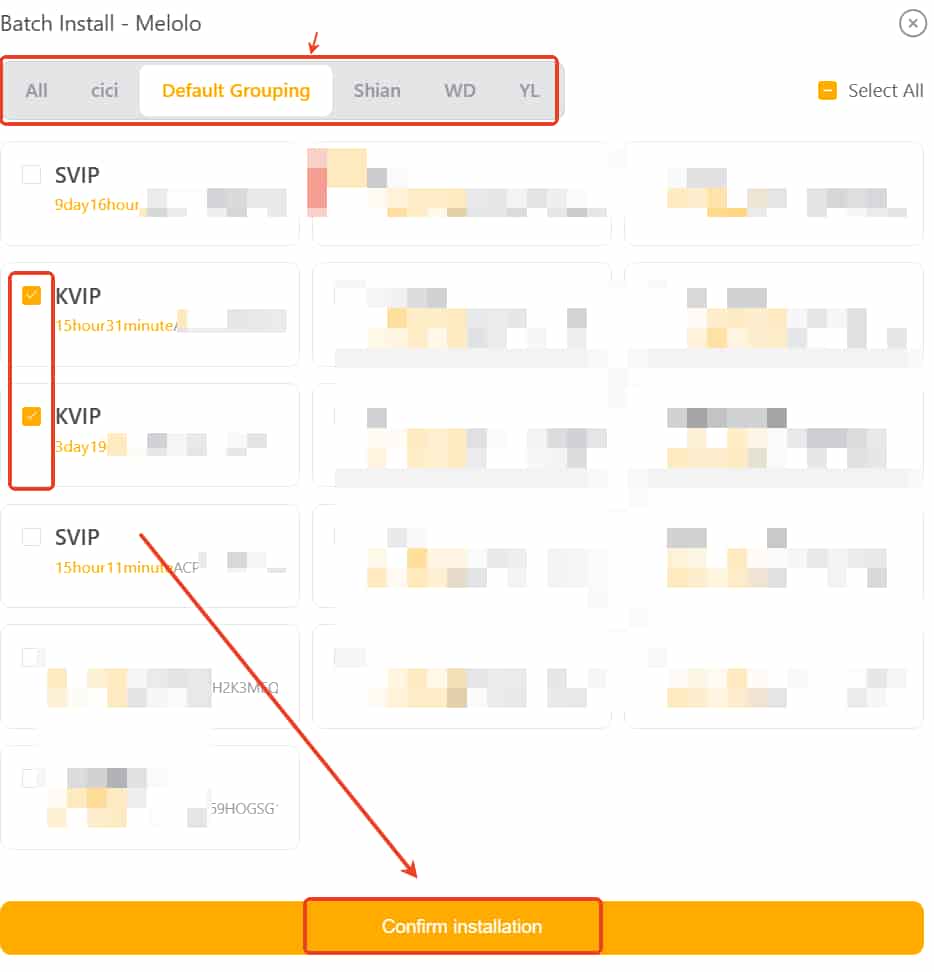
Open VSPhone App Market → Search MELOLO → Click Operation → Click Batch Install → Select the cloud devices need to install melolo → Click Confirm Installation
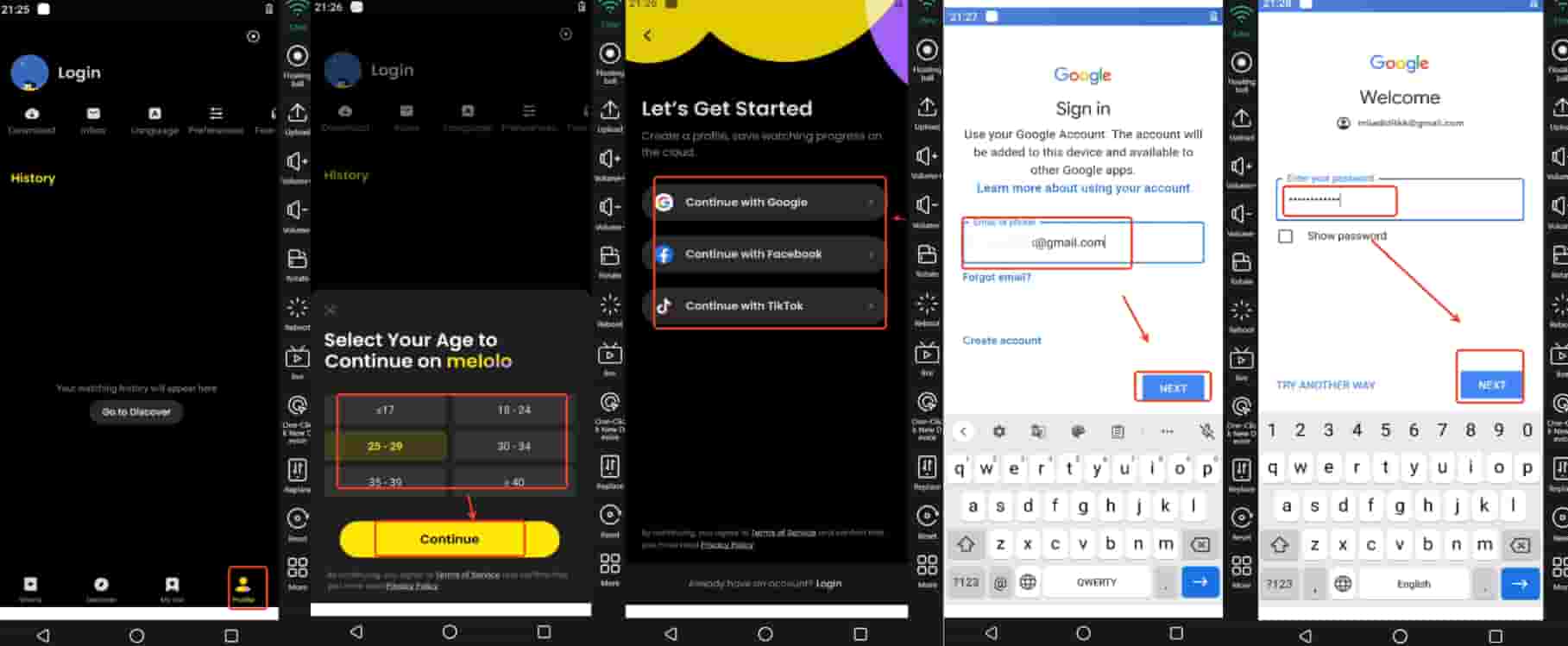
2: How to Register and Log in to MELOLO
Launch MELOLO → Confirm Age → Select registration or login method → Input credentials → Access MELOLO successfully
3: How to Clone Melolo?
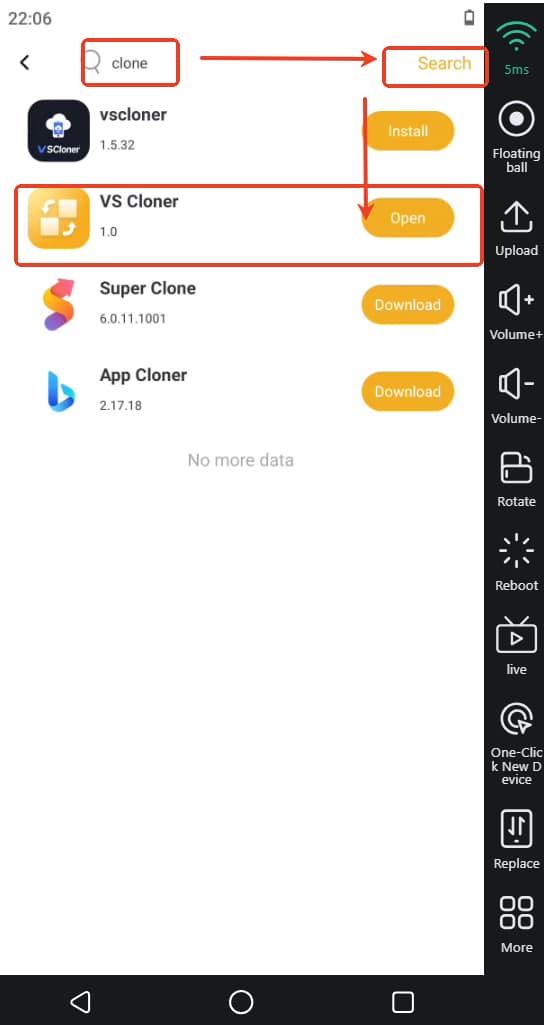
- Downlad VS Clone: Open App Store → Search VS Cloner → Download and install
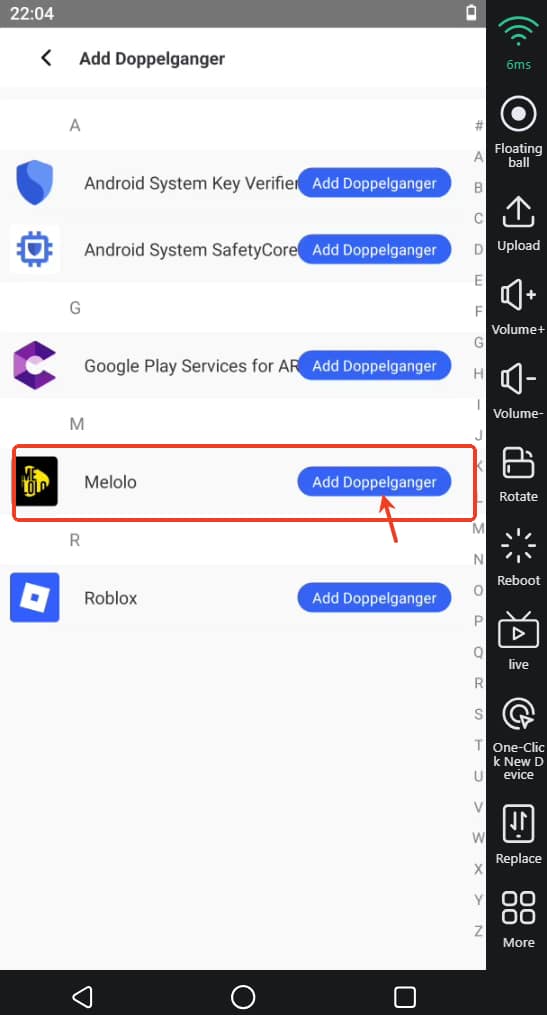
- Clone Melolo:Launch VS Cloner → Select MELOLO → Click Add Doppelganger → Confirm action → Complete cloning
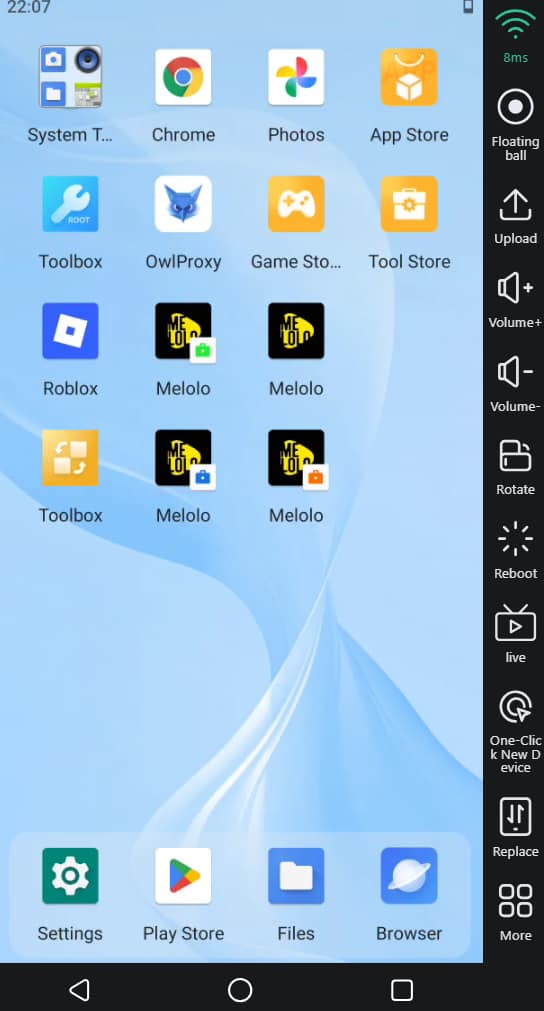
- Result:
Cloned MELOLO apps automatically appear on the desktop. Each clone runs independently and supports separate accounts.
Notes
Each MELOLO clone has isolated data
Device performance limits may affect the maximum number of clones
Keep MELOLO and VS Cloner updated for best stability
For more support, please contact VSPhone Official Support.